CharaStudio Penetration
There are different methods you can use for the insertion of a P item, or generally keep it pointed towards a target coordinate.
I will cover the following subjects:
- Dynamic Bone Collider (DBC) item targeting
- Look At Basic(LookAt) item targeting
- NodeConstraint
Look at parenttargeting - Have a vagina be reactive to a Dynamic Bone Collider (DBC)
- Dynamic Bone Collider (DBC) item targeting -
This is what I personally use most of the time for insertion. It's easy to set up and works well.
Prerequisites
- You will need to use the advanced KKPE menu, right-click KKPE button to open the menu
- Left-click the KKPE button for the regular menu and use
optionto adjust the size of the advanced menu - It requires that you use a P item that has
Dynamic Bones, if it doesn't have the tab in advanced KKPE then it won't work
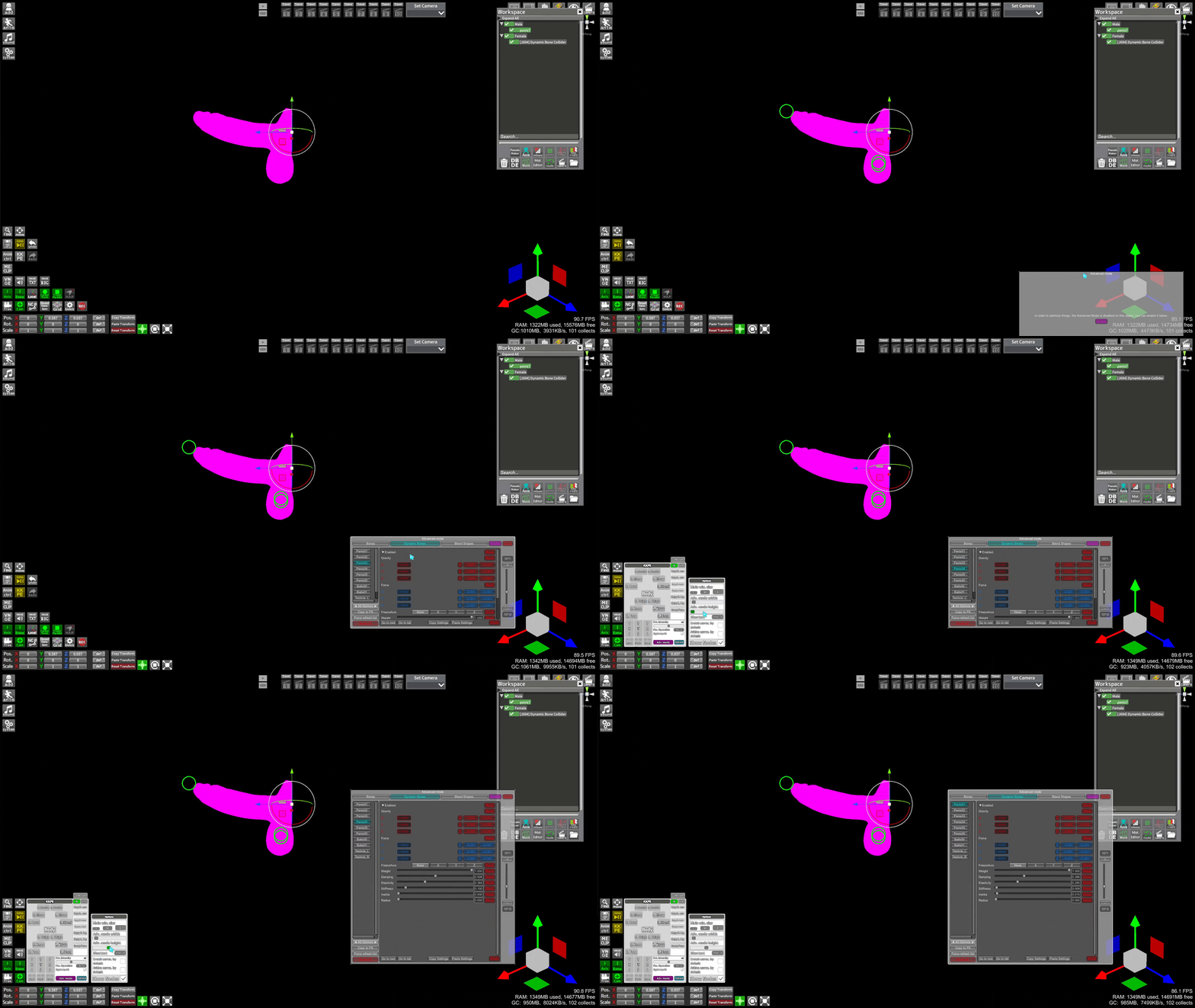
Usage
- Add your P item and parent it to the male, almost always on the crotch. Adjust the item position as needed
- Add a DBC item and parent it to the female, usually on the crotch or mouth but can vary
- Set up the DBC item to only target the bones you need, then set the Bound to
Insideso it acts as a magnet - Reduce the size of the DBC to be very small and position it as needed
- If you intend to distribute the scene, you should disable
Enable New Dynamic Bonesso it doesn't pull on the hair of newly added characters
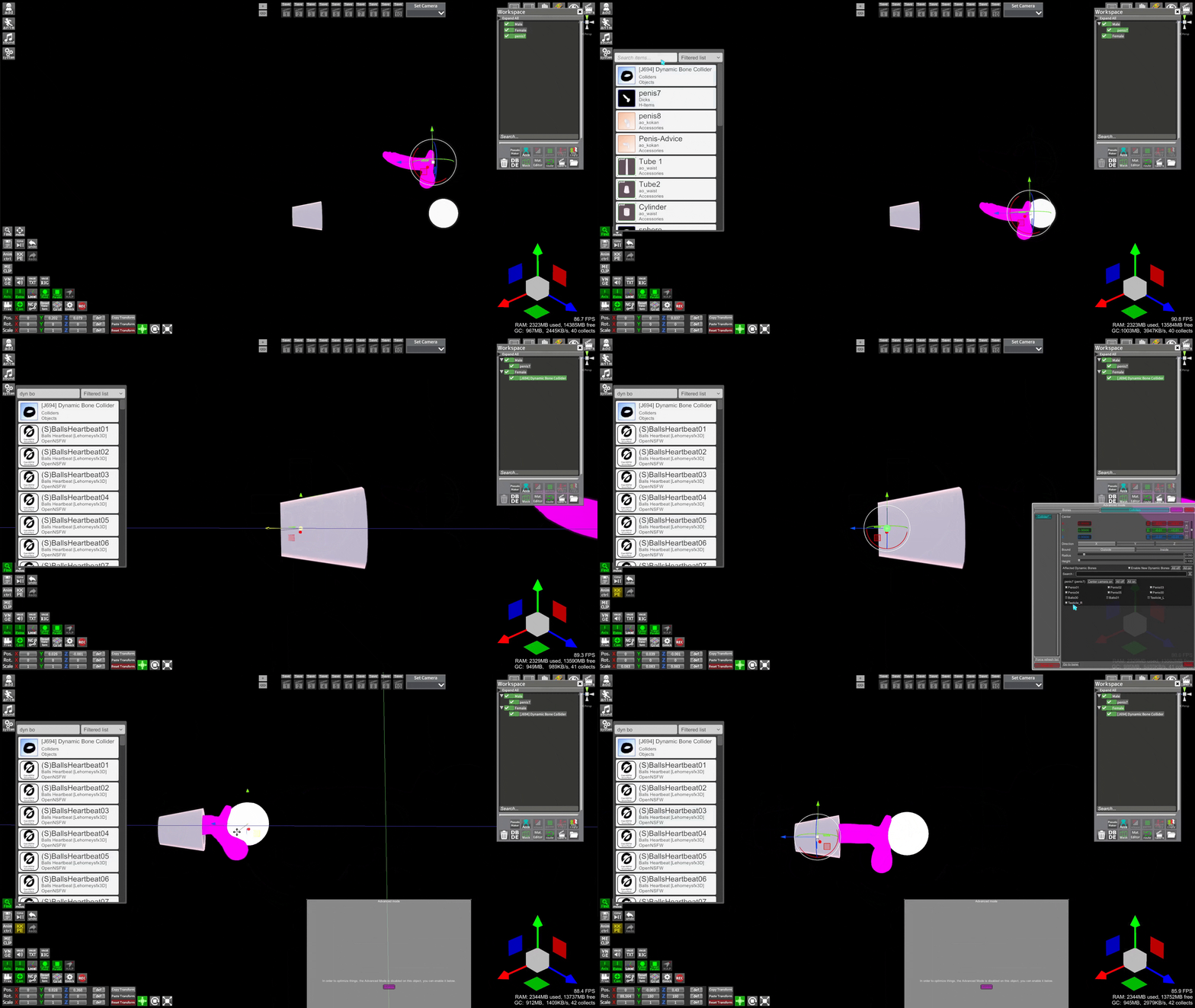
- Most of the time, you can find the ideal spot for the DBC and leave it there, but nothing is preventing you from animating the DBC position to move the P item.
- If you want to enable/disable the magnetic effect of the DBC, you can keyframe
Collider Boundor keyframe the scale of the collider (if it's big enough, it will no longer affect the P item).
Usage +
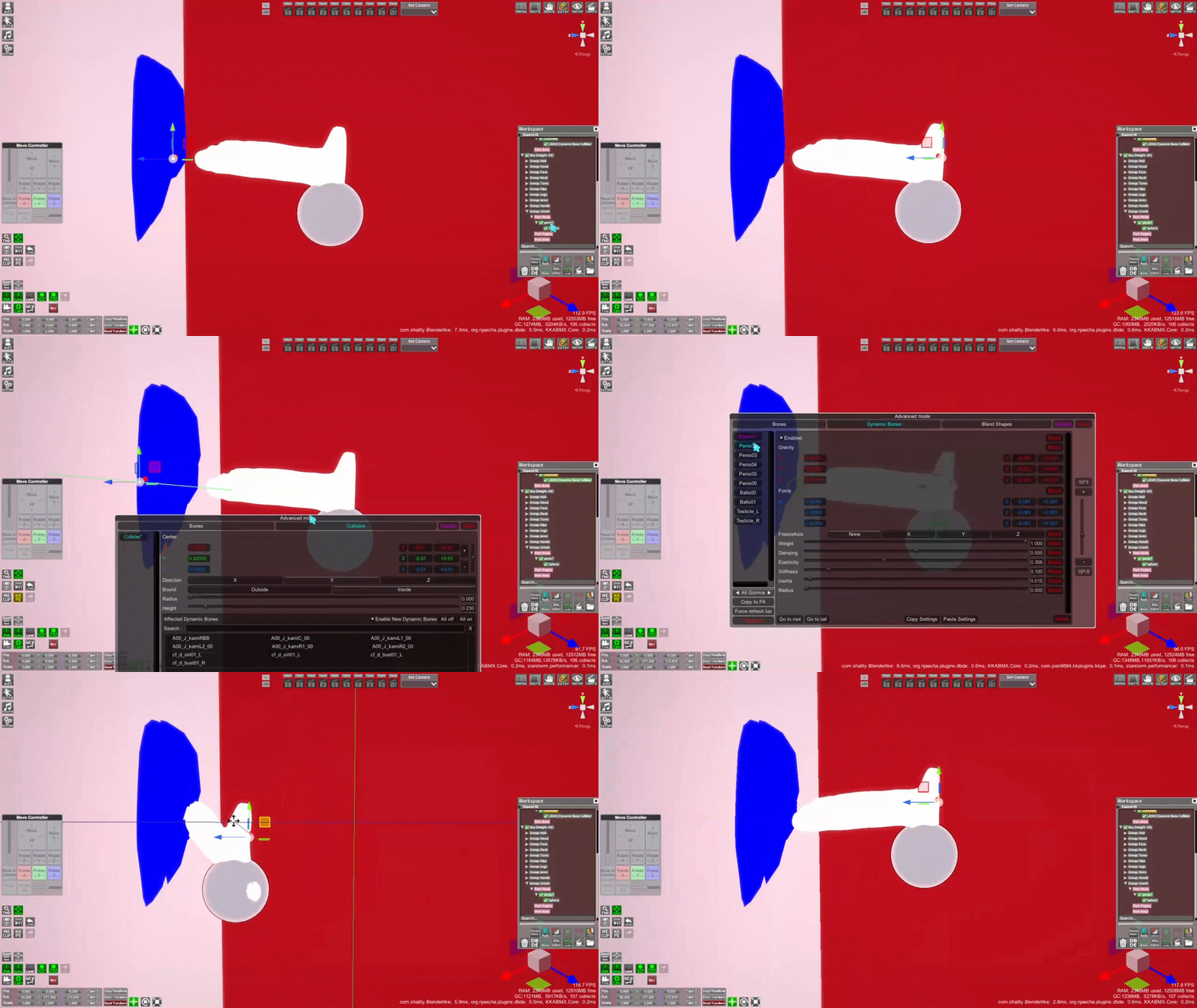
After working with it for a bit, I found 2 optimizations to have it behave more like BetterPenetration
- Make the DBC item a long bar rather than a dot
- Stiffen the P item's bones using KKPE
- (optional) Remove the first dynamic bone from the target list of the DBC item in KKPE (like Penis00)
This helps with clipping and prevents the P item from being too wobbly. You can extend the bar so the P item starts curving sooner.
- Look At Basic(LookAt) item targeting -
I don't have much experience with this one, so my demonstration might not be very good.
Prerequisites
- You will need to use the NodeConstraint (NC) menu to bind certain elements together. The default keybind is ctrl+i
- This can work with any items with FK bones; it is not limited to items with Dynamic bones
Usage
- Set up your P item on the male as usual and enable FK bones in
anim - Add a LookAt item and parent it at the same place as the P item
- Rotate the shaft of the P item so it points to the target direction you want
- Select one of the P item's bones near the root of the shaft and press
Fto center the camera to it - Select the LookAt item and press
Cto move the item to the current camera center, exactly where the P item's bone is located - Open the NC menu, select the LookAt item and set
pointeras parent, then select the P item's bone and set it as child - Still in the NC menu, enable
Link rotation, clickUse current, then Add new. The P item bone is now bound to LookAt - Stay in the NC menu, select the LookAt item and set
lookat_targetas child, then select the Female target (crotch, head, etc) and set as parent - Still in the NC menu, enable only
Link position, clickReset, then Add new. The target is now bound to the Female
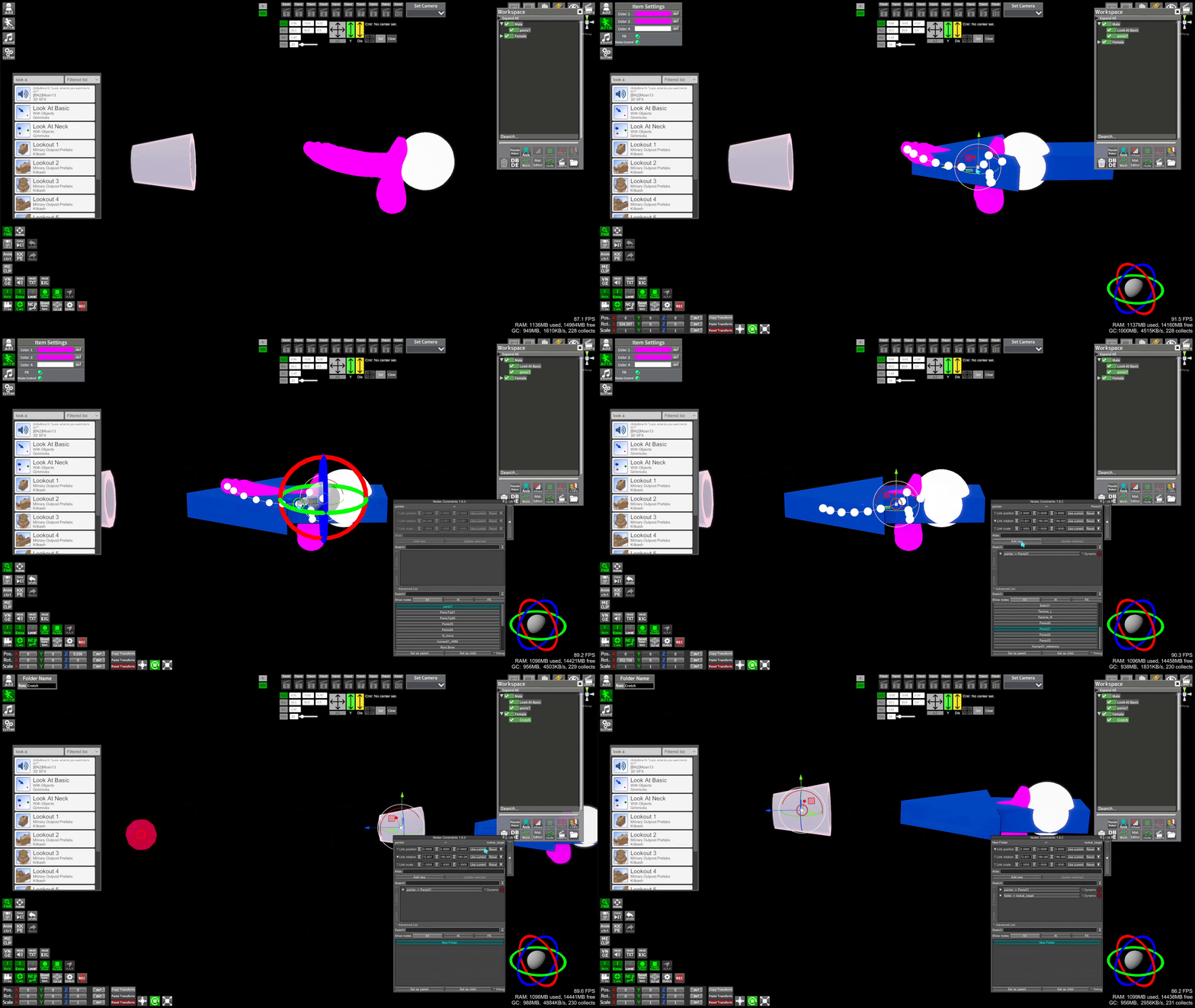
The P item should now follow the target. You can use multiple LookAt items if you want.
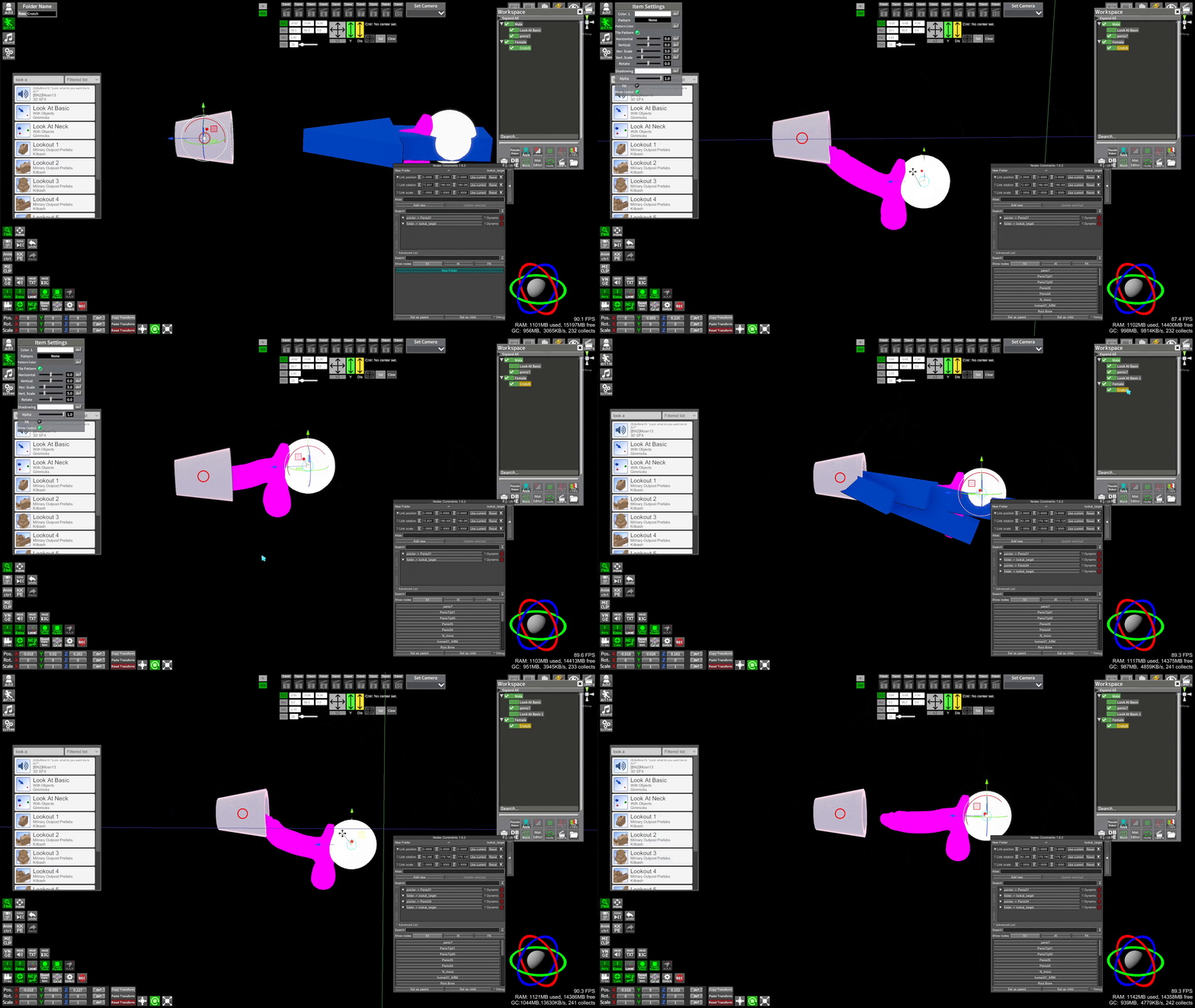
- NodeConstraint Look at parent targeting -
A newer addition to NodeConstraint plugin, very similar to the LookAt item function
Prerequisites
- You will need to use the NodeConstraint (NC) menu to bind certain elements together. The default keybind is ctrl+i
- This can work with any items with FK bones; it is not limited to items with Dynamic bones
Usage
- Set up your P item on the male as usual and enable FK bones in
anim - In this example, I use a
sphereitem parented to the female as the target bone but you can target any bone you want - Rotate the shaft of the P item so it points to the target direction you want
- Select one of the P item's bones near the root of the shaft, then open the NC menu and press
Set as child - Select the component that has the target bone (a sphere, a character, etc), then in the NC menu select in the list the bone to target and `Set as parent
- Still in the NC menu, enable
Link rotation, press the arrow for more options, enableLook at parent, clickUse current, then Add new.
The P item bone is now following the target bone
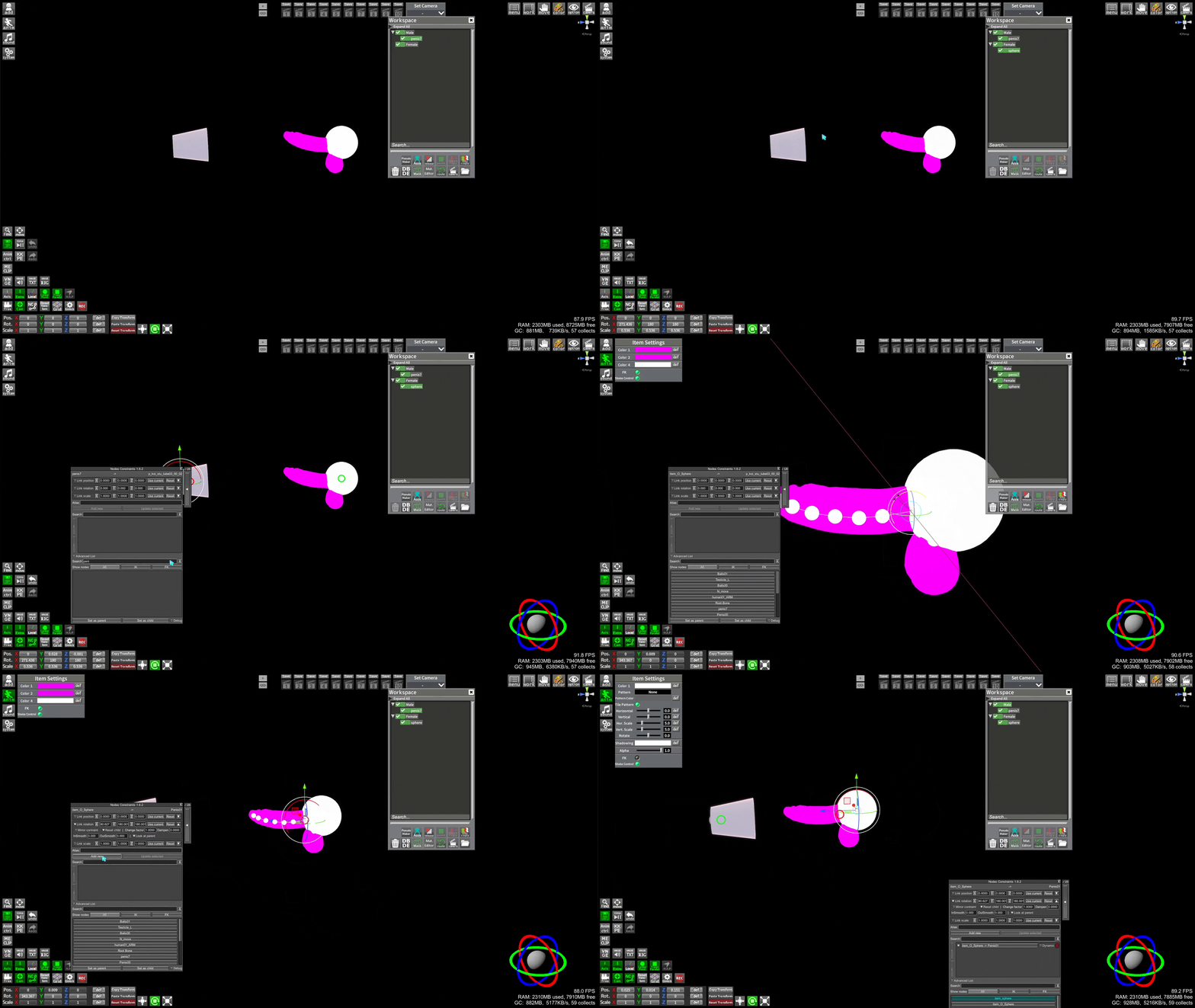
- BetterPenetration -
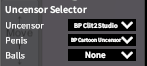
A simple method that uses a default Uncensors, but BP versions with the BetterPenetration plugin. This uses the genitals already on the characters, you can make it work partially with items but the other options are better for that.
Prerequisites
- Need the BetterPenetration and Uncensor selector plugins
- Both the male and the female target need to have BP
- (KKS only) Might need to enable
Auto-Targetin BetterPenetration
Male
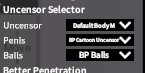
Female
IMPORTANT
If you want your scene to be compatible with KKS, limit your options to BP SAC Dong or BP SoS for male and BP SAC Innie or BP Profundis for female.
Usage
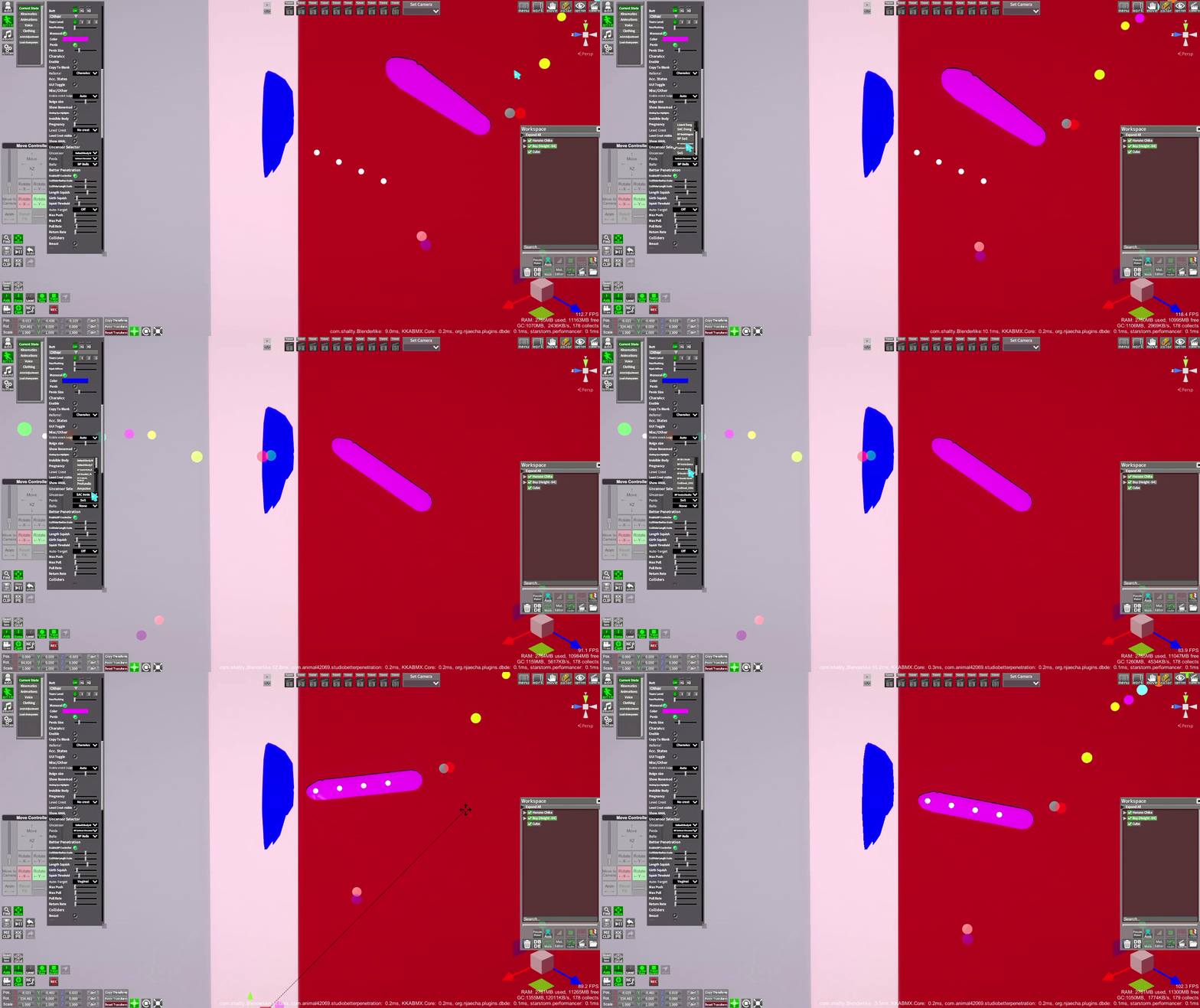
- Enable BP options on both male and female, use any of the BP Studio options
- In advanced KKPE->Dynamic Bones tab, press
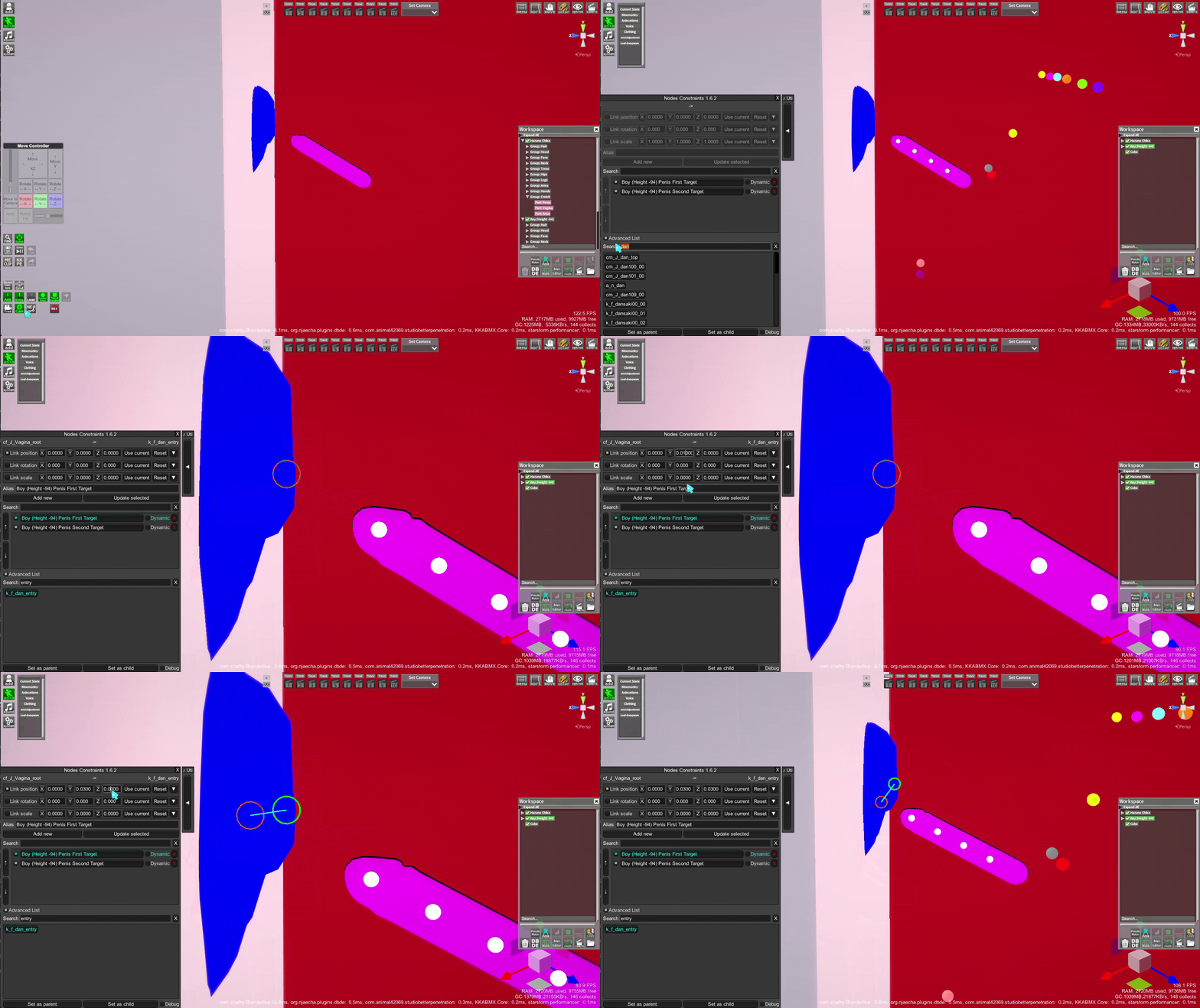
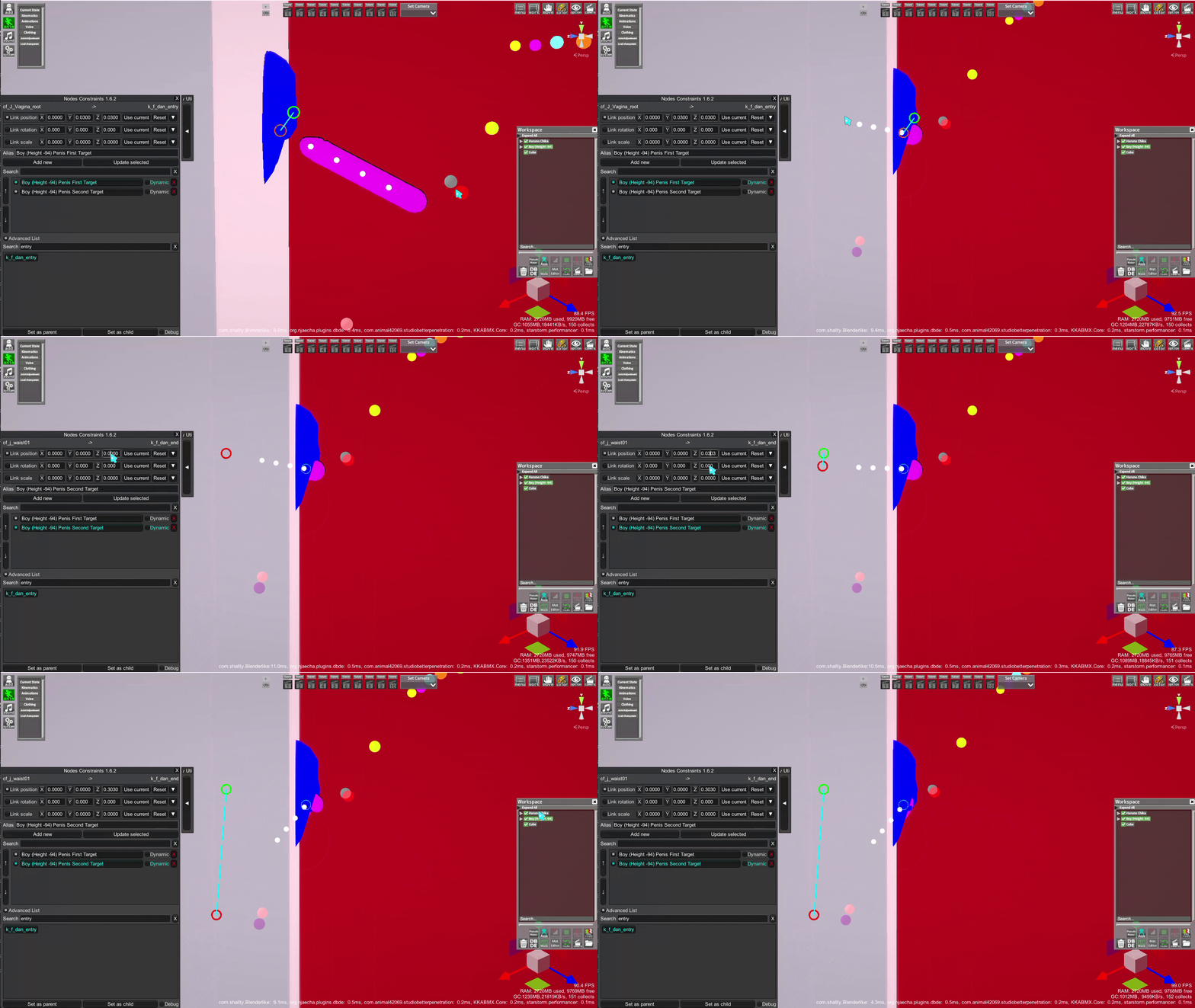
Force refresh listto activate the new Dynamic Bones added to the female, they should now be reactive if they were not before. - You can adjust the entry point and the end point using the entries created by BP in NodesConstraint. You can use different bones as the Parent, but don't change the Child.
- Have a vagina be reactive to a Dynamic Bone Collider (DBC) -
By default, a vagina is not reactive to a DBC. You can use one of the BP uncensors of the female to add dynamic bones
Prerequisites
- You will need to use the advanced KKPE menu (check
Dynamic Bone Collider (DBC) item targetingabove) - Can be used regardless of the targeting method
Usage
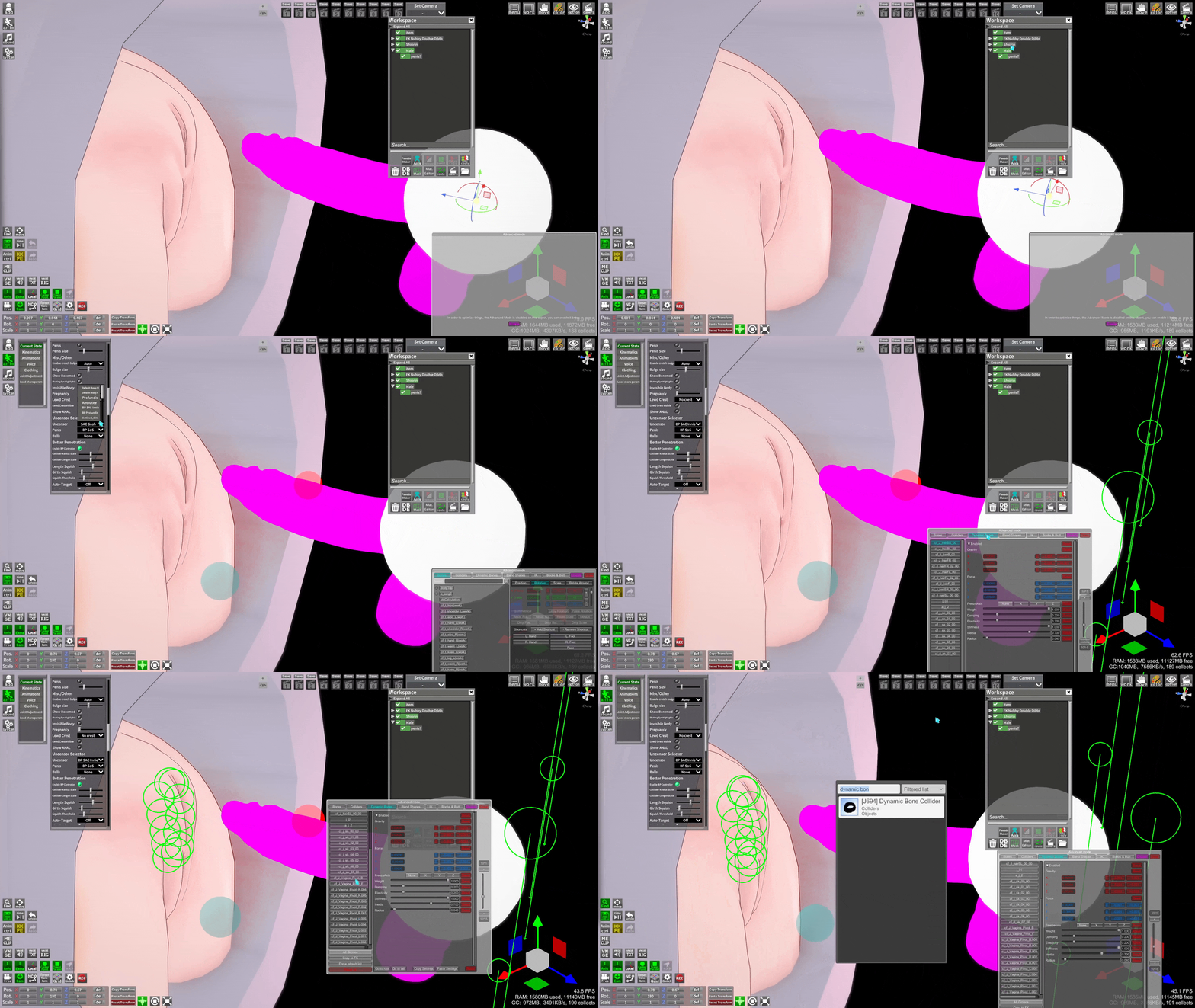
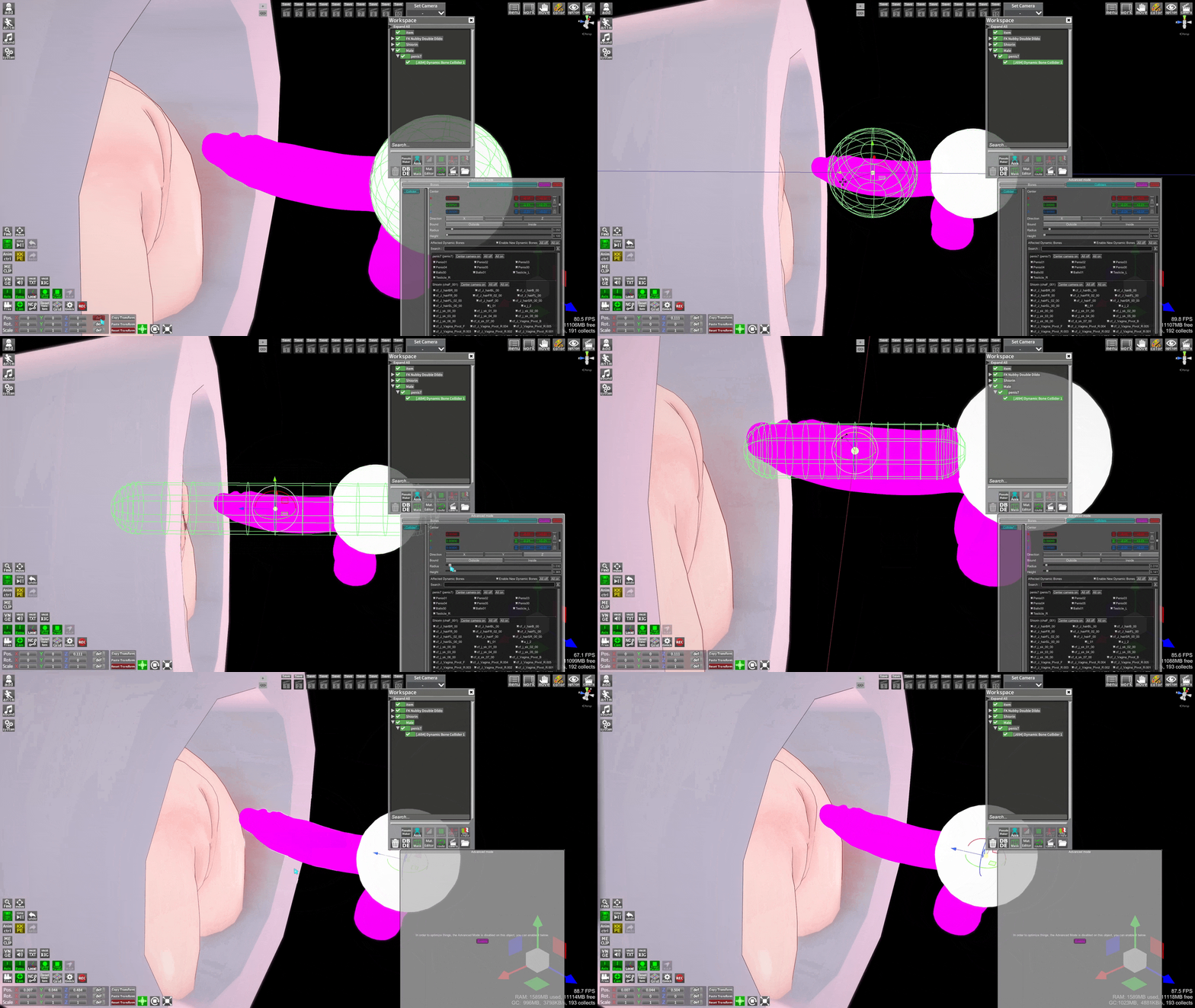
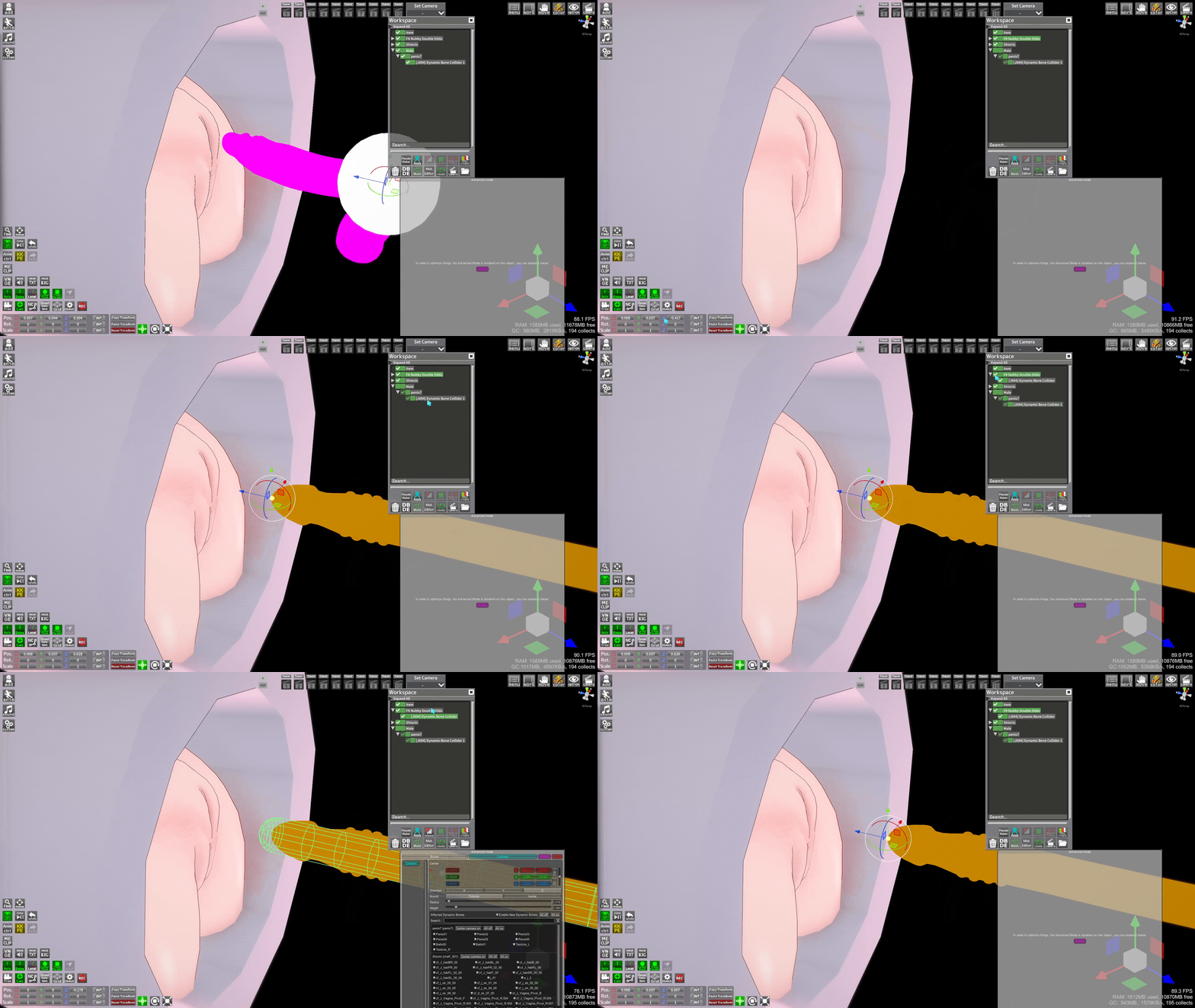
- Add a DBC item and parent it to the P item you are using
- Open the advanced KKPE menu and give the DBC its shape, set it to
Outside - Select the female, then in anim->Statu scroll down and set the
Uncensorto one of the BP options - In advanced KKPE->Dynamic Bones tab, press
Force refresh listto activate the new Dynamic Bones added to the vagina
The vagina should now be reacting to your item
Options
- You can use more than 1 DBC item, you can attach a DBC to individual bones of a P item
- Not all vagina Dynamic bones are necessary