iPhone Unavailable Try Again Stuck? 5 Easy Fixes
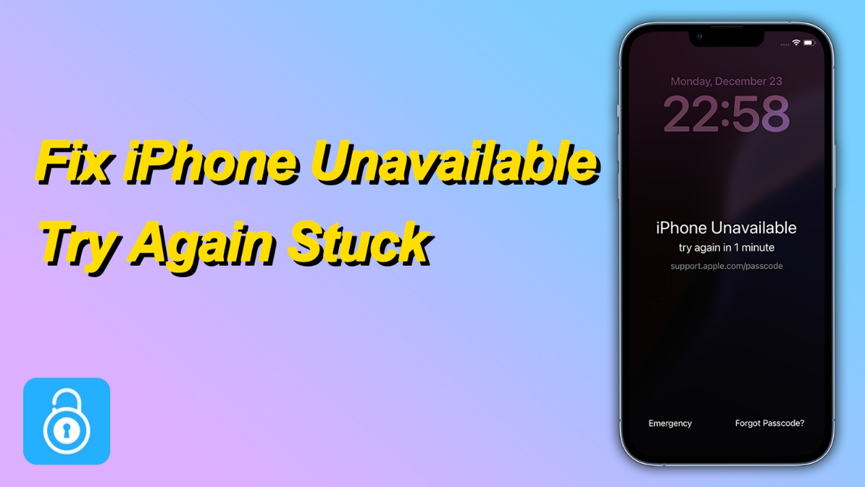
If you have ever picked up your iPhone and seen the dreaded message "iPhone Unavailable" on the lock screen, you know how frustrating it can feel. This security measure is designed to protect your private data, but it also means that you cannot use your device until you regain access.
In this guide, we will explain how to fix iPhone unavailable, including what “iPhone Unavailable” means, the reasons behind the error, how to bypass it using iPhone unlocker methods, and multiple step-by-step methods.
Understanding the “iPhone Unavailable” Message
Before exploring solutions, you need to know why your iPhone shows this error. Many users wonder why does my phone say iPhone unavailable. This issue usually appears after repeatedly entering the wrong passcode. Apple’s iOS security system temporarily locks the device to protect it from unauthorized access.
The duration of the lock varies. Initially, you may see iPhone unavailable try again in 1 minute, then 5 minutes, 15 minutes, or even longer. If incorrect attempts continue, the device may become permanently unavailable (iPhone unavailable no timer) until you reset or unlock it through recovery methods.
Common Scenarios Leading to iPhone Unavailable
- Forgot iPhone passcode: Perhaps you usually use Face ID or recently changed your code and accidentally forgot iPhone passcode.
- Children or friends attempting unlock: Multiple failed attempts can trigger the security lock.
- Malfunction or glitch: Very rarely, iOS software bugs can misread input and lock the device.
- Second-hand device purchase: If the previous owner did not remove their passcode, you may see the unavailable message immediately.
Knowing the cause can help you decide which method fits best for your situation.
Method 1: Bypass iPhone Unavailable via Forgot Passcode Option
If your iPhone displays the “iPhone Unavailable” message, you can quickly regain access using the Forgot Passcode option available on the lock screen. This method lets you erase your device and remove the passcode without needing a computer, as long as your iPhone is connected to the internet and you remember your Apple ID credentials.
Steps to fix iPhone Unavailable via Forgot Passcode:
- On the lock screen, tap Forgot Passcode in the bottom corner.
- Select Start iPhone Reset.
- Enter your Apple ID password to confirm your identity.
- Wait while your iPhone erases all data and settings.
Once complete, set up your iPhone again and restore from a backup if available.
Method 2: Fix iPhone Unavailable Using TunesKit iPhone Unlocker
If you want a quick and reliable solution, using a dedicated iPhone unlock tool is one of the easiest ways. TunesKit iPhone Unlocker is a professional program that can unlock your iPhone without passcode. Whether you forgot iPhone passcode, entered too many wrong attempts, or wonder how to unlock iPhone with broken screen, this software provides a fast and secure solution.
Here’s how to bypass iPhone unavailable with TunesKit:
Step 1: Install and launch TunesKit iPhone Unlocker
Download the software to your Mac or Windows computer and open it. Connect your iPhone to the computer with a USB cable.
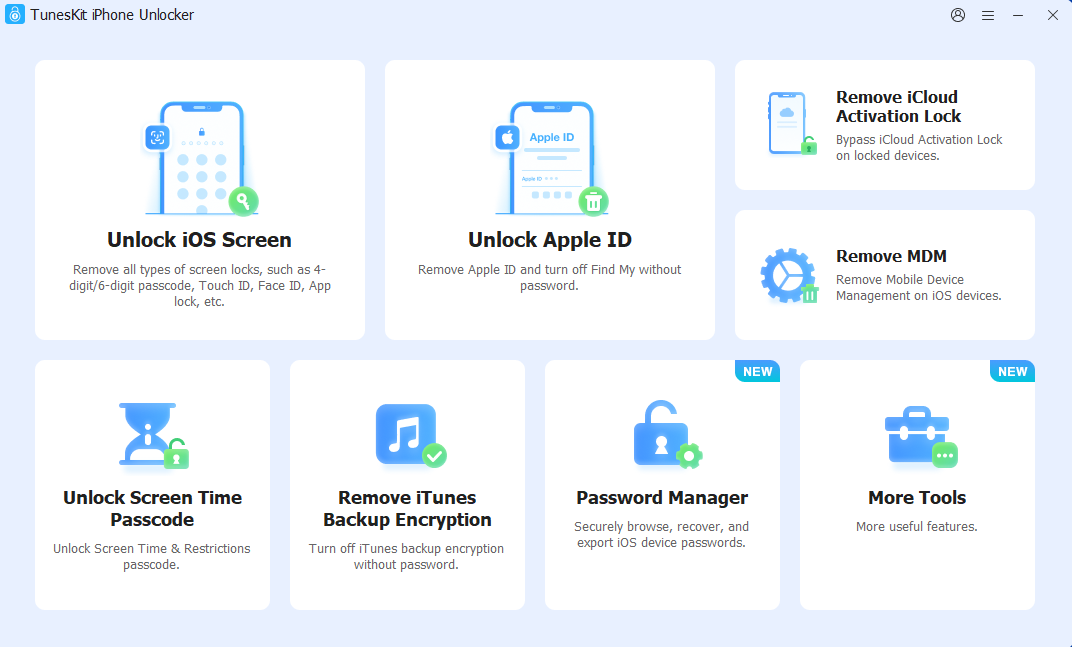
Step 2: Select “Unlock iOS Screen”
From the main interface, choose the option “Unlock iOS Screen”. This will allow the program to bypass the unavailable status. Then click Start. The software will guide you through putting your device into the correct mode to start the unlocking process.
Step 3: Download the firmware package
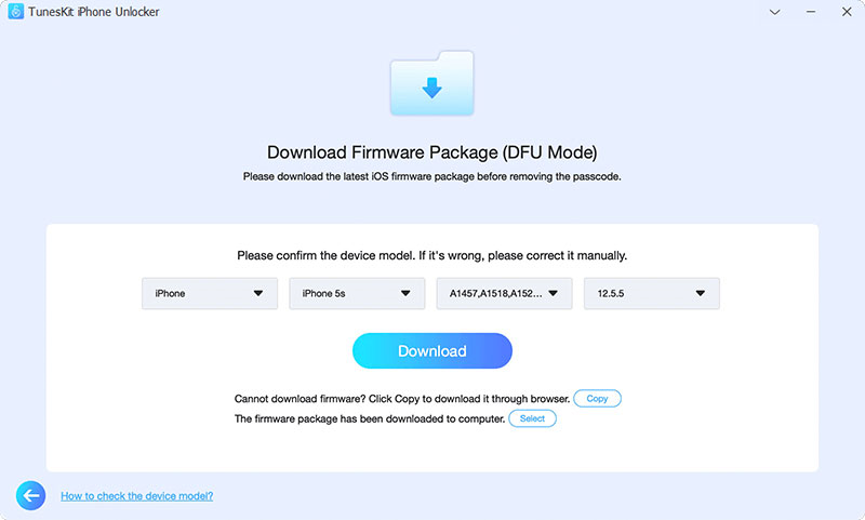
TunesKit will detect your iPhone model and ask you to confirm the details before downloading the appropriate firmware package. Then click Download.
Step 4: Unlock your iPhone
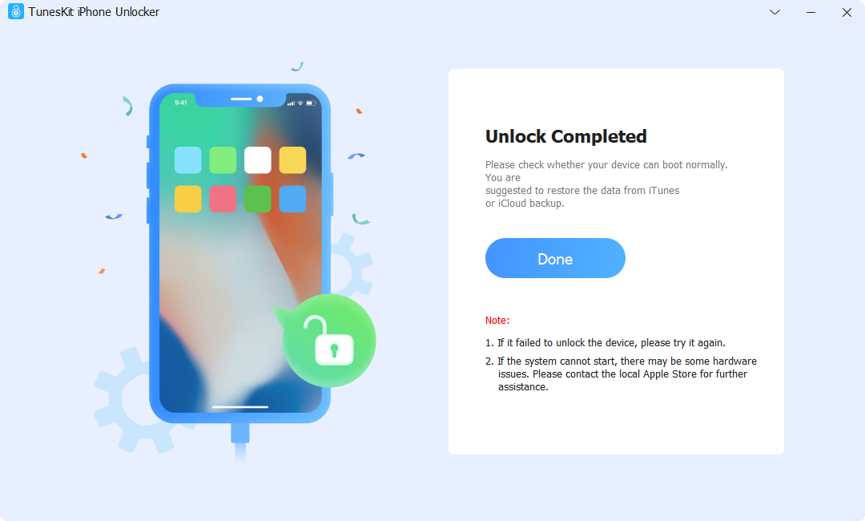
After the firmware is ready, click “Unlock” and wait a few minutes. Your passcode will be removed, and your iPhone will be accessible again.
Method 3: Use iTunes or Finder to Restore Your iPhone
Apple’s official method for iPhone unavailable fix involves restoring your device via iTunes (on Windows or older macOS) or Finder (on macOS Catalina and later).
Step 1: Put your iPhone into Recovery Mode
Turn off your iPhone. Then press and hold the correct button depending on your model:
iPhone 8 or later: Press and release the volume up button, then volume down button. Hold the Side button until the recovery mode screen (cable and laptop icon) appears.
iPhone 7/7 Plus: Press and hold the Volume Down button and side button simultaneously until the recovery mode screen appears.
iPhone 6s or earlier: Press and hold the Home button and power button simultaneously until the recovery mode screen appears.
Step 2: Connect to iTunes or Finder
Once your iPhone is in Recovery Mode, launch iTunes or Finder.
Step 3: Choose “Restore”
You will see a prompt to Restore or Update. Select Restore to erase the device and remove the passcode.
While this method works, it will erase all your data unless you have a backup.
Method 4: Use iCloud’s “Find My iPhone” Feature
If you have “Find My iPhone” enabled, you can erase your device remotely, which will remove the unavailable status.
Step 1: Go to iCloud.com
On a computer or other phone, sign in with your Apple ID.
Step 2: Select your device
In the Find My iPhone interface, choose your locked device from the list.
Step 3: Start Erase iPhone
Click Erase and confirm your choice. This will delete all data and passcode, allowing you to set up the device again.
This method only works if your iPhone is connected to Wi-Fi or cellular data.
Method 5: Contact Apple Support
If none of the above methods work or you cannot use recovery options, reaching out to Apple Support is the safest route. They may require proof of purchase before helping, especially if there is an Activation Lock involved.
Conclusion
Whether you have forgot iPhone passcode or encountered a lock due to repeated failed attempts, the solutions above can help fix iPhone unavailable try again stuck. For many users, the most efficient way is using an iPhone unlock tool like TunesKit iPhone Unlocker to quickly bypass and regain access.
By understanding why does phone say iPhone unavailable, following the steps for how to bypass iPhone unavailable, and protecting against future issues, you can ensure your iPhone remains accessible when you need it most.