E-commerce Optimization: How to Upscale Low-Res Supplier Photos to 4K for Amazon Listings
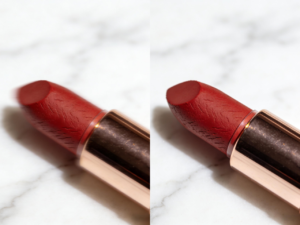
Low-resolution supplier photos can sink an otherwise great Amazon listing. When customers see blurry, pixelated images, they lose trust and click away. This directly impacts your sales and brand reputation. Fortunately, you don't need a professional photography studio to fix this problem. You can transform those fuzzy images into sharp, 4K-quality product shots that grab attention and drive conversions.
The secret is using an AI-powered tool to increase image resolution without losing clarity. An effective Image Upscaler can intelligently add detail to your photos, making them perfect for Amazon's zoom feature and high-resolution displays. This guide will walk you through the entire process, helping you create professional listings that stand out. You can even use a versatile AI Photo Editor to make final adjustments for a perfect finish.
Why High-Quality Images Are Crucial for Amazon Sales
On Amazon, your product images do the heavy lifting. They are your virtual storefront, your product demonstration, and your salesperson all rolled into one. Customers can't touch or feel your product, so they rely entirely on the images you provide to make a buying decision. Crisp, clear photos build credibility and show potential buyers that you are a professional seller offering a quality item.
Amazon itself has specific technical requirements for images, recommending files be at least 1000 pixels on the longest side to enable the zoom feature. When a customer can zoom in to see the texture, details, and quality of your product, their confidence skyrockets. High-resolution images fill the entire product image box, look professional on all devices, and give you a significant advantage over competitors who use mediocre, low-quality pictures.
Step-by-Step Guide to Upscaling Supplier Photos
Follow these steps to turn your basic supplier photos into stunning, high-resolution assets for your Amazon FBA or Seller Central account.
Step 1: Prepare Your Original Supplier Photos
Start by gathering the best possible versions of your supplier's images. Even the most advanced AI works better with a decent source file. Look for photos with good lighting and clear focus, even if the resolution is low. Save them in a common format like JPEG or PNG to a dedicated folder on your computer. A well-organized workflow will save you a lot of time, especially if you are working with multiple products or image variations.
Step 2: Upload Your Image to an AI Upscaler
Navigate to an AI-powered image upscaling tool. These platforms are designed for simplicity. You'll typically find a straightforward interface with a clear "Upload Image" button. Select the low-resolution photo you want to improve. The tool will analyze your image to prepare it for enhancement. This initial analysis helps the AI understand the existing details, colors, and textures, which is crucial for a natural-looking result.
Step 3: Choose the Right Upscaling Level
Once your image is uploaded, you'll need to select the desired magnification. Most tools offer options like 2x and 4x. To reach a 4K-like resolution suitable for Amazon's demanding standards, the 4x option is usually the best choice. For example, if your original photo is 800x800 pixels, a 4x upscale will transform it into a much more detailed 3200x3200 pixel image. This size is ideal for enabling Amazon's zoom function and looks fantastic on large monitors.
Step 4: Let the AI Process Your Image
After selecting your upscaling factor, initiate the process. The AI gets to work analyzing pixels and intelligently adding new ones that match the context of the image. It doesn't just stretch the picture, which would cause blurriness. Instead, it reconstructs details like fabric textures, sharp edges, and fine text. This process usually only takes a few seconds, depending on the file size and the tool's processing power.
Step 5: Download and Review the Final Image
Your high-resolution image will be ready for download once the AI is finished. Save the new file and open it to conduct a thorough quality check. Zoom in and inspect the details. Look for any strange artifacts or unnatural textures. In most cases, the result will be a dramatically clearer and sharper image that looks professional and ready for your listing. Compare it side-by-side with the original to see the incredible difference.
Tips and Best Practices for Best Results
Upgrading your photos is simple, but a few extra tips can ensure your Amazon listings look their best.
| Best Practice | Description | Why It Matters |
| Start with Quality | Use the highest resolution source file available. | AI works best when it has more data to analyze. A better starting image leads to a cleaner upscale. |
| Check Aspect Ratios | Ensure your final image meets Amazon's aspect ratio guidelines, which is often 1:1 (square). | Images that aren't the correct shape can get distorted or cropped, harming the user experience. |
| Batch Process for Efficiency | If you have many photos, use a tool that allows you to upload and process multiple images at once. | This saves a massive amount of time and ensures a consistent level of quality across all your product shots. |
| Optimize File Names | Rename your image files with relevant keywords before uploading to Amazon (e.g., brand-product-blue-widget.jpg). | This is a small but effective SEO practice that can help your product appear in relevant searches. |
| Use a Clean Background | After upscaling, ensure your product has a pure white background (RGB 255, 255, 255) for the main image. | This is a strict Amazon requirement and creates a clean, consistent look across the platform. |
Common Mistakes to Avoid When Upscaling
While AI makes image enhancement easy, there are a few common pitfalls that can compromise your results.
Upscaling Tiny, Blurry Photos: There is a limit to what AI can do. If your source image is extremely small or completely out of focus, the AI may struggle to create a clean result. Always start with the clearest photo you can get.
Ignoring Amazon's Guidelines: Don't forget to check Amazon's latest image requirements. They have specific rules about size, background color, and content. Uploading non-compliant images can get your listing suppressed.
Not Checking for Artifacts: Always review the upscaled image carefully. Occasionally, an AI might misinterpret a texture or create a slightly unnatural pattern. A quick check allows you to catch and correct these minor issues before they go live.
Forgetting File Compression: A 4K image can have a large file size. After upscaling, use a compression tool to reduce the file size without sacrificing visual quality. This helps your listing load faster for customers.
Conclusion
You no longer have to settle for poor-quality supplier photos that hurt your Amazon sales. With modern AI tools, you can easily upscale your images to a professional 4K resolution in just a few minutes. This simple process enhances customer trust, enables the critical zoom feature, and gives your products the high-end presentation they deserve. By following this guide, you can improve your listings, stand out from the competition, and ultimately drive more revenue.