How to Resolve PST to MBOX Conversion Issues on Windows 11/10
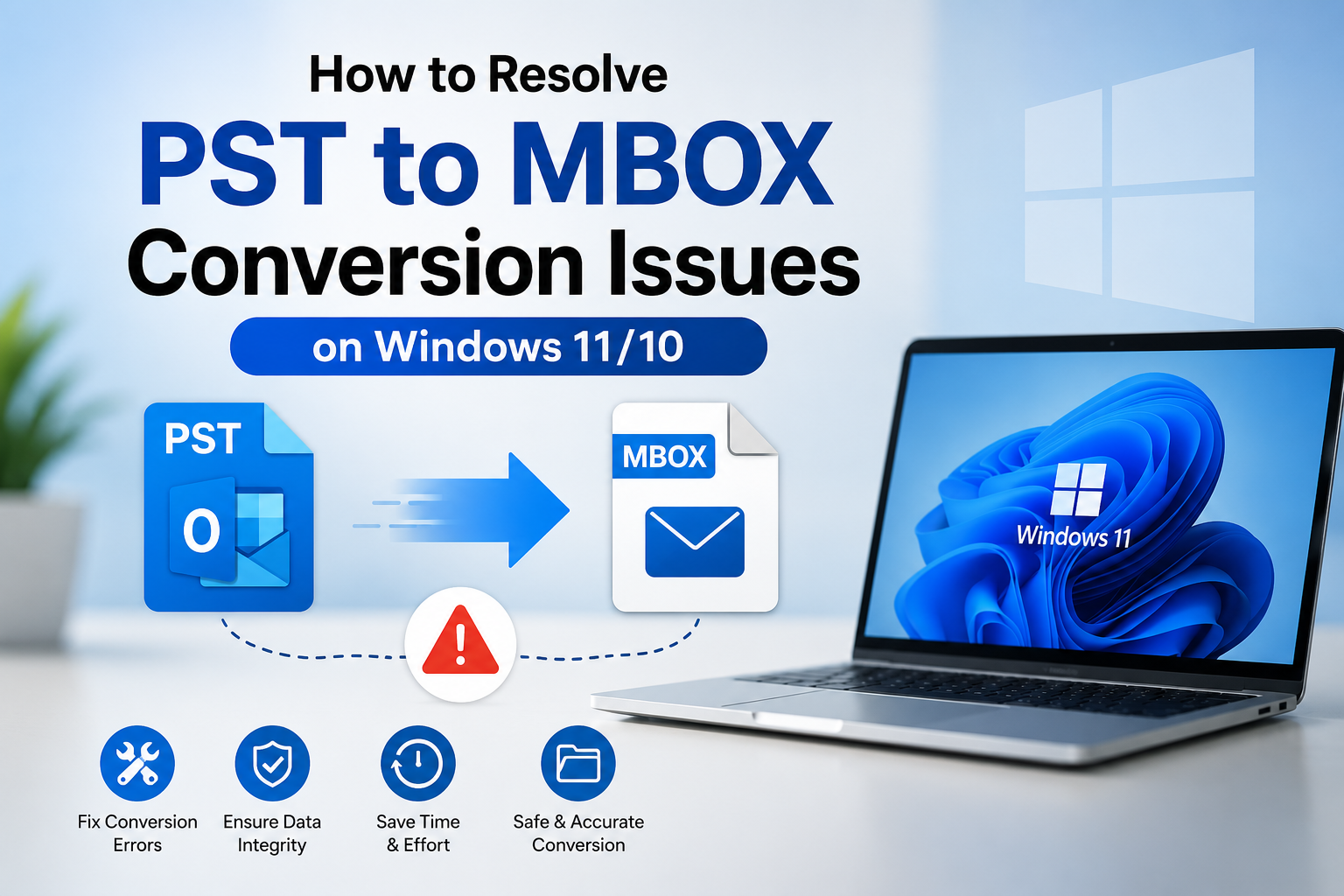
Introduction
Converting a PST file to MBOX on Windows 11 or Windows 10 should be an easy process but it is not always. You may experience conversion failures, missing emails, broken folder structures, corrupted attachments or MBOX files that won’t open in Thunderbird or other email clients. This can be frustrating, especially if you are migrating years of important emails or backing up before changing email platforms.
The good news is, most of the PST to MBOX conversion problems have obvious causes and practical solutions. Whether the issue stems from a corrupted PST file, Outlook compatibility, software limitations or improper export settings, you can usually resolve it without losing your data.
In this tutorial, we will go over the reasons for PST to MBOX conversion errors, how to fix them on Windows 11 and Windows 10, and the best conversion method for different scenarios. By the end, you'll be aware of how to safely convert your Outlook data, while retaining emails, attachments, folder hierarchy and other mailbox information.
Can we Resolve PST to MBOX Conversion Errors?
Yes. If you know the root cause of PST to MBOX conversion issues, you can fix most of them before trying another conversion.
Usual problems are:
- PST Files Corruption
- Outlook versions not supported
- Size of big mail box
- Exporting in the wrong ways
- Software incompatibility issues
- Conversion processes partial
- Missing folder hierarchy or attachments
Converting Outlook PST files to MBOX format is a relatively simple process on Windows 11 and Windows 10 as long as your PST file is healthy and you use the right conversion method.
Why Do Users Need PST to MBOX Conversion?
There are many practical scenarios where you need to convert PST files to MBOX.
1. Switch from Outlook to Thunderbird
Mozilla Thunderbird supports the MBOX format, which is why many users switch from Microsoft Outlook to this free application.
2. Utilizing a Different Email Client
MBOX is supported by some email applications like Apple Mail, SeaMonkey, Eudora and other clients.
3. Making Long-Term Email Backups
Emails are usually archived in MBOX files because they are more accessible from multiple platforms.
4. Reading Emails in Outlook Without Outlook
The PST to MBOX conversion allows you to access your emails in the compatible applications if Outlook is not available on your system anymore.
5. Migrate business email
In fact, many organizations are migrating employees from Outlook to open source email platforms where MBOX is the mailbox format of choice.
Common Problems in PST to MBOX Conversion
Learning what the most common user problems are can help you decide on a solution.
Corrupted PST File
Corrupt Outlook data files often crash while converting or create incomplete MBOX files.
Conversion is half done
The process may be interrupted due to large mailbox files, insufficient system resources or unstable software.
Attachments missing
Some conversion methods do not transfer the attachments only the email messages.
Changes to Folder Structure
Doing the conversion incorrectly can flatten the mailbox folders or reorder them incorrectly.
Unable to Open MBOX File
Sometimes the conversion is successful but the resulting MBOX file is not supported by the target email client.
Method 1: Before Conversion Repair PST File
Best For: Users of Corrupt PST file or facing Outlook errors.
The most common reason behind failed conversion is a corrupted PST file.
Methods
- Close Microsoft Outlook.
- Search for the Inbox Repair Tool, ScanPST.exe.
- Locate and choose your PST file.
- Run the scan.
- Correct any errors you find.
- Restart Outlook.
- Make sure that emails can be accessed.
- Repeat PST to MBOX Conversion.
Benefits
- Microsoft free utility
- Fixes popular PST errors
- Better conversion success rate
Cons
- Does not fix badly corrupted files
- Large mailboxes may take some time
Method 2: Make Large PST Files Smaller
Best for: Users working with large Outlook data files.
In case of very large PST files, software may crash or fail to complete the conversion.
Steps
- Open Outlook.
- Archive Your Old Emails.
- Get rid of excess stuff.
- Deleted Items is empty.
- Compress the PST file.
- Save optimized PST file.
- Convert the smaller file.
Pros
- Faster conversion
- Less risk of accidents
- Better performance overall
Cons
- Requires manual clean up
- Mailboxes are large – takes time
Method 3: Check Outlook Compatibility
Best For: Conversion errors that are unexpected.
Some conversion utilities need Outlook installed correctly.
How to do it
- Make sure Outlook is installed.
- Install all available Windows updates.
- Upgrade Microsoft Outlook.
- Restart your computer.
- Run the converter again.
Pros
- Solves compatibility issues
- Increases software stability.
Cons
- Does not repair damaged PST files.
Method 4: Professional PST to MBOX Converter Tool
If the manual troubleshooting fails, the safest way is to apply a professional Softaken PST to MBOX Converter.
Professional tools are made to manage complex Outlook mailbox structures without the chance of data loss. They convert thousands of emails, maintaining formatting, attachments, metadata and folder structure. It also support selective conversion so you can export only certain folders, date ranges or email categories instead of the entire mailbox.
These tools are useful especially when dealing with:
- Heavy PST files
- Mailbox structures deteriorated
- Some Outlook data files.
- Migrations of businesses
- Mass mailbox conversion
Instead of using several manual processes, a specialized converter automates the process and reduces the risk of conversion errors.
Features and Benefits of PST to MBOX Converter Tool
A good PST to MBOX converter generally offers the following benefits:
- Maintains the original folder hierarchy
- Transforms emails with attachments
- Keeps email formatting and metadata
- Supports non-English and Unicode characters
- Quick processing of large PST files
- Convert multiple PST files in bulk
- Preview emails before you convert them
- Selective folder’s conversion
- Compatible with Windows 10 & Windows 11
- Reduce risk of data corruption
- Time saving on large migrations
- Generates MBOX files compatible with most email clients
Tips to avoid PST to MBOX conversion issues
There are a number of best practices that can help you avoid common issues.
- Always take backup of PST file before conversion.
- Repair corrupted PST files before exporting.
- Verify that there is enough disk space.
- Close Outlook if required during conversion process.
- Do not stop the conversion process.
- Keep Windows and Outlook up-to-date.
- Confirm the converted MBOX files prior to deleting the original PST.
Conclusion
The issue of PST to MBOX conversion in Windows 11 and Windows 10 is primarily due to corrupted PST files, oversized mailboxes, software compatibility issues, and unreliable conversion methods. Fortunately, these problems can be resolved by repairing the PST file, reducing the mailbox size, checking the Outlook compatibility or by using a reputed conversion tool.
Manual preparation might be enough for small mailbox migrations. But, if you are migrating large PST files, business emails, and want to keep all email, attachment, and folder same as it is in Outlook, then a professional PST to MBOX converter is the most reliable and efficient solution.
By selecting the right method for your situation and following the steps in this guide, you can convert with little chance of losing data and get your MBOX files ready to work in the email client of your choice.
Frequently Asked Questions (FAQ)
1. Why is my PST to MBOX conversion failing?
The most common causes are a damaged PST file, insufficient space, outdated Outlook, large mailboxes or limitations in the conversion software. Many times, repairing the PST file and using a reliable converter can fix the issue.
2. Can we convert PST to MBOX without having Microsoft Outlook?
Professional PST to MBOX conversion tool can convert PST files without Outlook installation.
3. Will my attachments be kept during the conversion?
Certainly, if you use a reliable conversion method or a professional converter. Attachments may not be properly included with basic or outdated tools.
4. Is there any file size limit while converting PST to MBOX?
MBOX format has no fixed limit but very large PST files might slow down the conversion or increase the risk of interruptions. Before conversion, splitting or compacting large PST files can improve performance.
5. What email clients can open MBOX files?
MBOX is a popular format for email migration and archiving. It is supported by many popular email applications, including Mozilla Thunderbird, Apple Mail, SeaMonkey, Eudora and several other desktop email clients.