Native 4K vs Upscaled 4K: Which One Should You Really Choose?
🎬 Native 4K vs Upscaled 4K: What’s Really Worth Your Screen?
If you’re shopping for a new 4K UHD TV or diving into the latest games on a PlayStation 5 or Xbox Series X, you’ve probably noticed the debate: native 4K vs upscaled 4K. On paper, both claim “4K quality,” but the reality is a little more nuanced.
Let’s unpack what this all means and how you can get the most out of your video content.
What’s Native 4K Anyway?
Native 4K, or True 4K, means exactly what it sounds like: a resolution of 3840×2160 pixels, or roughly 8.3 million pixels. Each pixel is real and individually addressed by your display, which translates to sharper details, vibrant colors, and precise brightness control.
A native 4K TV or monitor renders all these pixels directly from the source. No guessing, no interpolation—just crisp, accurate imagery every time.
What About Upscaled 4K?
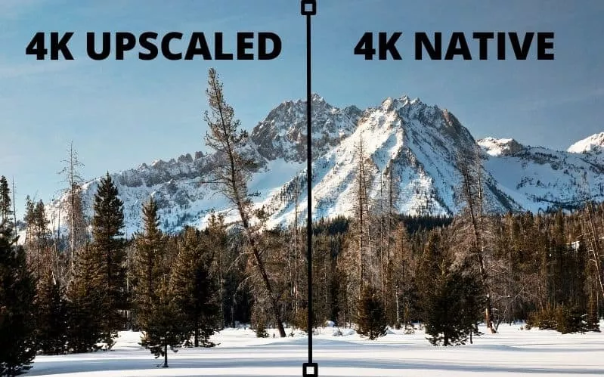
Upscaled 4K takes lower-resolution videos (like 1080p or 720p) and stretches them to fit a 4K screen. This is done using software or hardware algorithms, which estimate the missing pixels—a process known as interpolation.
Older methods, like bicubic scaling, could soften edges or blur fine details. But today, AI upscaling uses smart algorithms to predict textures, colors, and edges, giving old footage a new lease on life.
Here’s a quick breakdown:
Feature Native 4K Upscaled 4K
| Feature | Native 4K | Upscaled 4K |
|---|---|---|
| Resolution Source | True 3840×2160 | Lower-res content enhanced |
| Pixel Generation | Actual pixels | Estimated by algorithm |
| Clarity | Maximum detail | Better than original, less than native 4K |
| Image Quality | Crisp and accurate | May show artifacts like blur |
| Processing | Minimal | Higher CPU/GPU load |
| Best Use | 4K movies & games | Older content on 4K screens |
| Hardware | High-end displays & sources | Mid-range TVs with upscalers |
Why Native 4K Still Rules
Native 4K is the gold standard. Every pixel is crafted by the creator, so textures, edges, and colors stay perfect—even on massive 85-inch displays. Plus, rendering is easy—your display doesn’t need to guess or interpolate.
The catch? Native 4K content is still relatively expensive, and most older videos—home movies, YouTube uploads, classic shows—are stuck at 1080p or lower.
Can AI Upscaling Close the Gap?
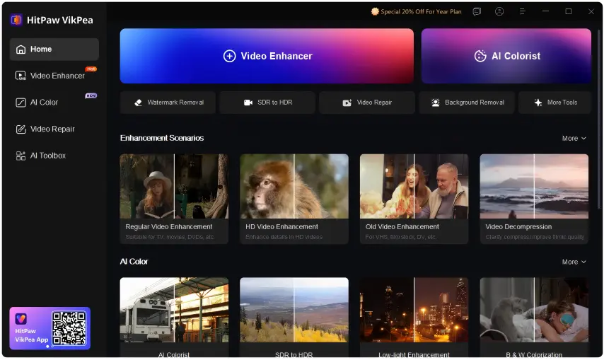
This is where HitPaw VikPea Video Upscaler (formerly HitPaw Video Enhancer) comes in. With AI upscaling, you can transform your older 1080p or 720p videos into near-native 4K clarity.
Here’s what it offers:
●Restore lost details using deep learning
●Reduce noise & artifacts
●Sharpen edges and textures
●Simple workflow: Upload → Choose AI model → Export
Essentially, it’s like giving your old videos a 4K makeover without buying expensive new content.
3 Simple Steps to Upscale Videos
1.Install HitPaw VikPea on your PC or Mac.
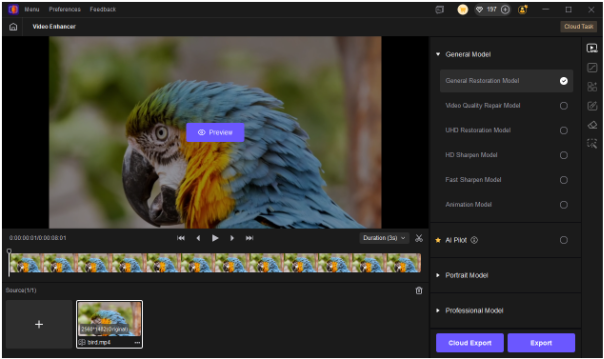
2.Upload your video (1080p or lower).
3.Select an AI upscaling model.
4.Preview the results, and export your 4K video.
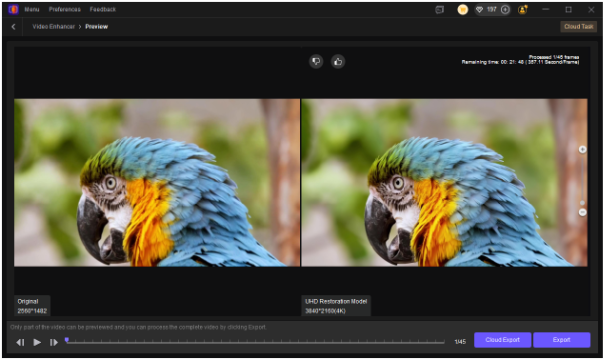
Even old family clips can suddenly look like they were filmed yesterday.
Bottom Line
Native 4K still provides the ultimate in clarity and detail. But if your library is mostly older content, AI upscaling is a practical solution. It’s cost-effective, simple, and can make your videos look stunning on modern 4K displays.
So, are you chasing true 4K, or are you letting AI work its magic on your existing footage?
💡 If you want more tips, tutorials, and insights on upgrading your videos and getting the best out of your media, follow me and subscribe for weekly updates—let’s make every frame look incredible!