How to Improve Video Quality: Easy Fixes and AI Tools
With the rapid growth of video platforms, video quality has become a key factor in attracting and retaining viewers. Blurry visuals, noise, or low resolution can easily reduce engagement. Fortunately, improving video quality is no longer limited to professionals—thanks to modern tools and techniques, anyone can enhance their videos effectively.
Part 1: Common Causes of Poor Video Quality
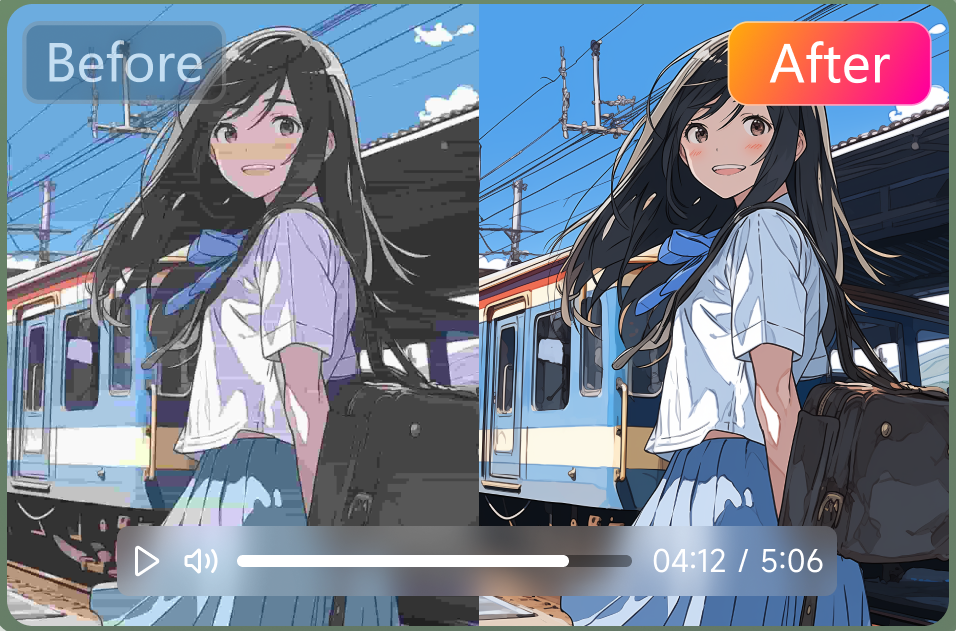
Before improving video quality, it’s important to understand what causes it to degrade in the first place. One of the most common issues is low resolution. Videos recorded in 480p or lower often appear pixelated, especially on larger screens. Even if the content is good, poor clarity can drive viewers away.
Another factor is compression. When videos are uploaded or shared online, platforms often compress them to reduce file size. This can result in loss of detail, color banding, and visible artifacts. Lighting also plays a crucial role—videos shot in low light tend to have more noise and less sharpness.
Camera limitations can further impact quality. Older devices may lack advanced sensors or stabilization features, leading to shaky footage and soft focus. Finally, improper export settings, such as low bitrate or incorrect format, can significantly reduce the final output quality.
Understanding these issues helps you choose the right solution, whether it’s better shooting practices or using enhancement tools after recording.
Part 2: Improving Video Quality with AI Tools( A Practical Approach)
AI-powered tools have changed the way people enhance video quality. Instead of manually adjusting sharpness, contrast, and noise reduction frame by frame, modern software can analyze footage and apply targeted improvements automatically. This makes video enhancement faster, more consistent, and accessible even for beginners.
1. Using HitPaw VikPea for Video Enhancement
HitPaw VikPea is a practical example of how AI can simplify video quality improvement. Rather than acting like a traditional editor, it focuses on solving specific problems through dedicated AI models.
Here’s how it helps in real scenarios:
- AI Upscaling for Low-Resolution Videos
If you’re working with older footage or compressed clips, resolution is often the biggest limitation. VikPea can upscale videos (e.g., 720p to 1080p or 4K) while rebuilding missing details, instead of simply stretching pixels. - Noise Reduction for Low-Light Footage
Grainy visuals are common in videos shot at night or indoors. The denoise model reduces visual noise while preserving edges, avoiding the overly “blurred” look that basic filters often create. - Face Enhancement for Portrait Content
For vlogs, interviews, or social media videos, facial clarity matters a lot. VikPea includes a face-focused model that sharpens facial features and improves detail without making the image look artificial. - Specialized Models for Different Content Types
It also provides separate models for animation and general footage, which is useful because cartoons and real-life videos require different enhancement approaches.
The typical workflow is simple:
①Import your video
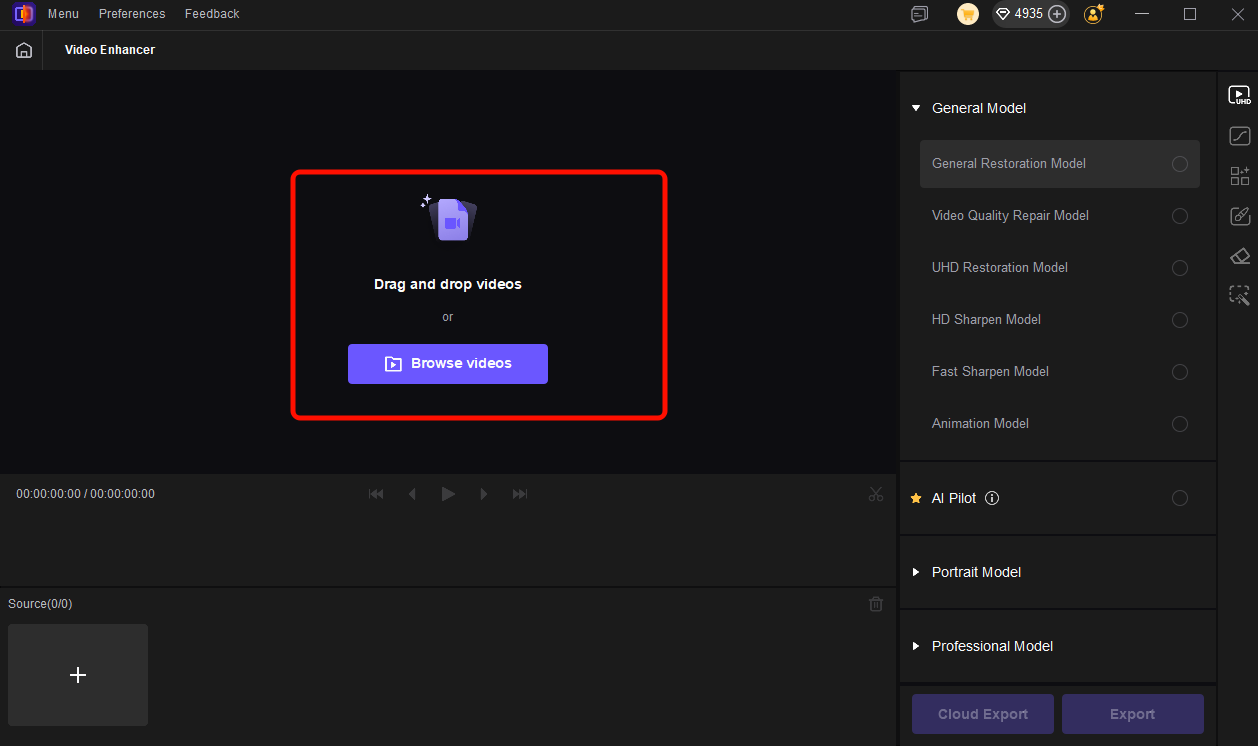
② Choose an AI model based on the issue (blur, noise, low resolution, etc.)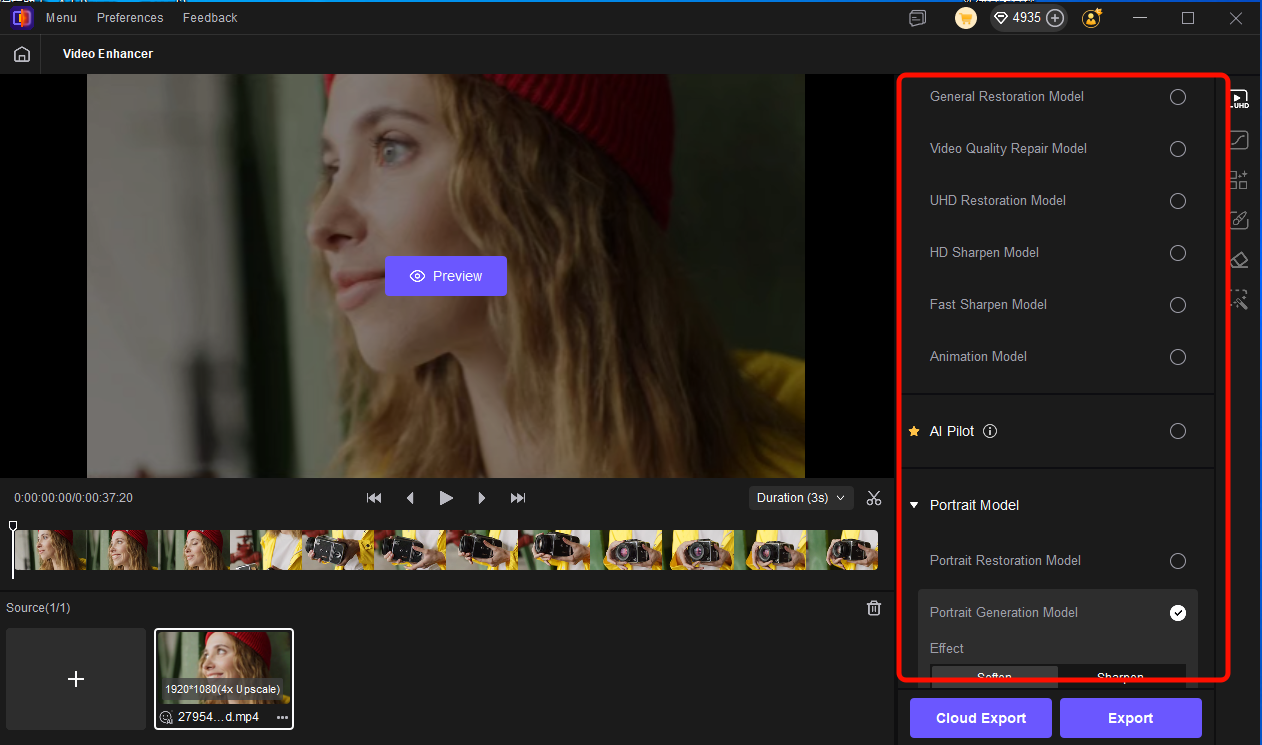
③Preview the result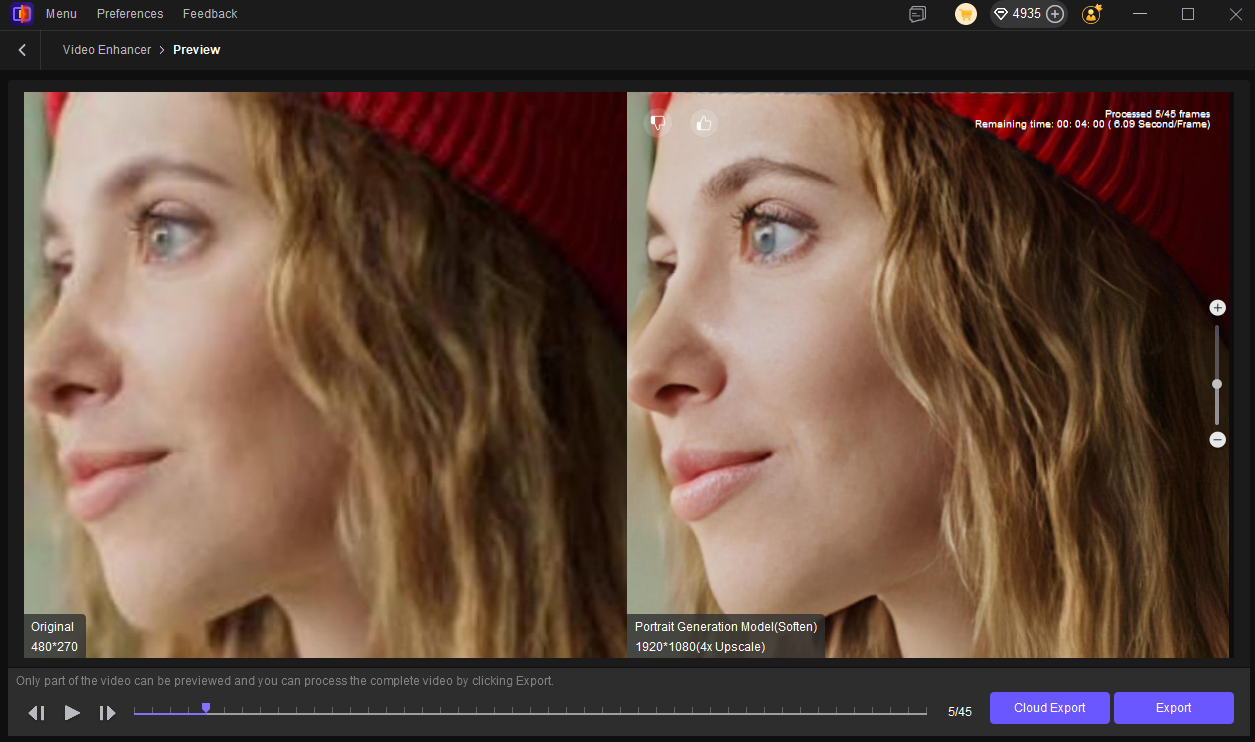
④Export in the desired resolution
This structured approach reduces trial and error, which is especially helpful if you don’t have a strong editing background.
2. Other Popular Tools and How They Compare
While VikPea offers a balanced, user-friendly solution, it’s worth understanding how it compares to other tools on the market.
- Topaz Video AI
Often considered a high-end option, Topaz Video AI delivers strong results in upscaling and motion stabilization. It’s particularly popular among professionals working with archival or cinematic footage. However, it tends to require more processing time and higher hardware performance, which may not suit casual users. - Adobe Premiere Pro (with plugins)
Premiere Pro is a full-featured video editor rather than a dedicated enhancer. With the right plugins, it can achieve excellent results, but the process is manual and time-consuming. It’s better suited for users who want full control over every detail rather than quick improvements. - CapCut and Similar Apps
Tools like CapCut provide basic enhancement features such as sharpening, filters, and auto-adjustments. They are convenient for short-form content and quick edits, but they lack the deeper AI reconstruction capabilities found in dedicated tools. - AVCLabs Video Enhancer AI
Another AI-based option, AVCLabs focuses on upscaling and face enhancement. It performs similarly in some areas but may vary in interface simplicity and processing efficiency depending on the use case.
3. Choosing the Right Tool for Your Needs
Each tool reflects a different balance between control, automation, and efficiency:
- If you want maximum control and professional workflows, traditional editors like Premiere Pro are more suitable.
- If you need high-end restoration and don’t mind longer processing times, Topaz Video AI is a strong option.
- If your focus is quick social media edits, lightweight apps like CapCut are enough.
- If you prefer a balance of ease-of-use and solid AI enhancement, tools like HitPaw VikPea offer a practical middle ground.
In most everyday scenarios, the goal is not perfection but noticeable improvement with reasonable effort. That’s where AI-driven tools are especially valuable—they reduce complexity while still delivering clear, visible results.
Part 3: Practical Tips to Maintain High Video Quality
While enhancement tools can fix many issues, prevention is always better than correction. Start by recording in the highest resolution your device supports. Even if you plan to export in 1080p, shooting in 4K gives you more flexibility during editing.
Lighting is another critical factor. Natural light works best, but if that’s not available, consider using basic lighting setups to reduce shadows and noise. Stabilization also matters—using a tripod or gimbal can significantly improve perceived quality.
When exporting videos, choose the correct settings. A higher bitrate generally results in better quality, though it increases file size. Make sure to use widely supported formats like MP4 with H.264 or H.265 encoding.
Finally, avoid repeated compression. Uploading and downloading videos multiple times can degrade quality with each cycle. Keep your original files whenever possible and only compress when necessary for distribution.
Conclusion
Improving video quality doesn’t have to be complicated. By combining good recording habits with AI tools like HitPaw VikPea, you can significantly enhance clarity, reduce noise, and create more professional-looking videos with minimal effort.